INTRODUCTION产品介绍
Latch blocks the apps that steal your time — and puts the unlock button somewhere you have to walk to.
Pick the apps, categories and websites that pull you in, then slide the latch to lock them. To unlock, scan your key: a few-cent NFC sticker or a QR code you print at home. Keep it on the fridge, in the car or at your desk at work, and the few steps it takes to go get it are usually enough to change your mind.
Latch uses Apple's Screen Time (Family Controls) to block apps on your own iPhone. Your choices stay on your iPhone.
YOUR KEY, NO GADGET
• Use any NTAG213, NTAG215 or NTAG216 NFC sticker — a few cents each — or a QR code you print at home (the camera scans it)
• Tap the sticker with Latch closed, or scan it in the app
• Stickers are locked with a password after writing, so no one can write over them. Save the password in Apple's Passwords app
• Share one key with family or roommates — one sticker on the fridge for the whole house
• Tell Latch where each key lives, and the lock screen tells you where to walk
• One key works with all your iPhones
• A steps key (Pro): walk 500 to 20,000 steps to unlock, counted with Motion & Fitness
• On iPad, use a QR key. NFC stickers, the steps key and lock while driving need an iPhone
LOCKS BEFORE YOU THINK TO
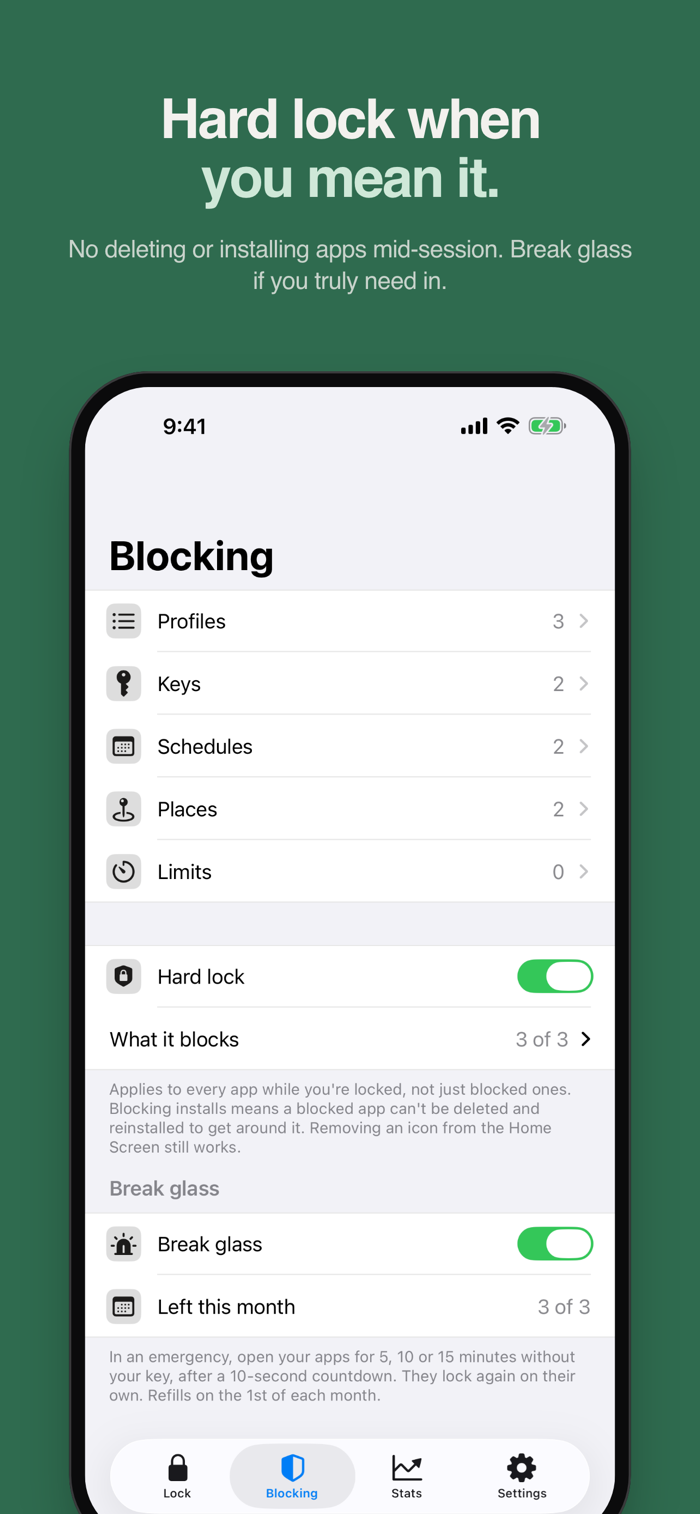
• Built-in profiles — Work, Social and Bedtime — ready with the usual suspects
• Schedules (Pro): every weekday morning, or at bedtime until you scan your key
• Places: lock when you arrive at the office or the gym, and unlock when you leave (uses your location)
• Lock while driving (Pro): Latch notices a drive with your location and Motion & Fitness, locks the profile you choose, and unlocks after you park
• A Control Center toggle (iOS 18): tap to lock, tap again to open the scanner
• Siri: "Latch my phone", or "Latch my phone with Work". Also in Shortcuts and on the Action button
BUILT FOR THE DAYS YOU'D RATHER NOT
• Daily limits (Pro): give an app or category a few minutes a day while you're unlocked
• Commit…