


 +100宝石


产品功能
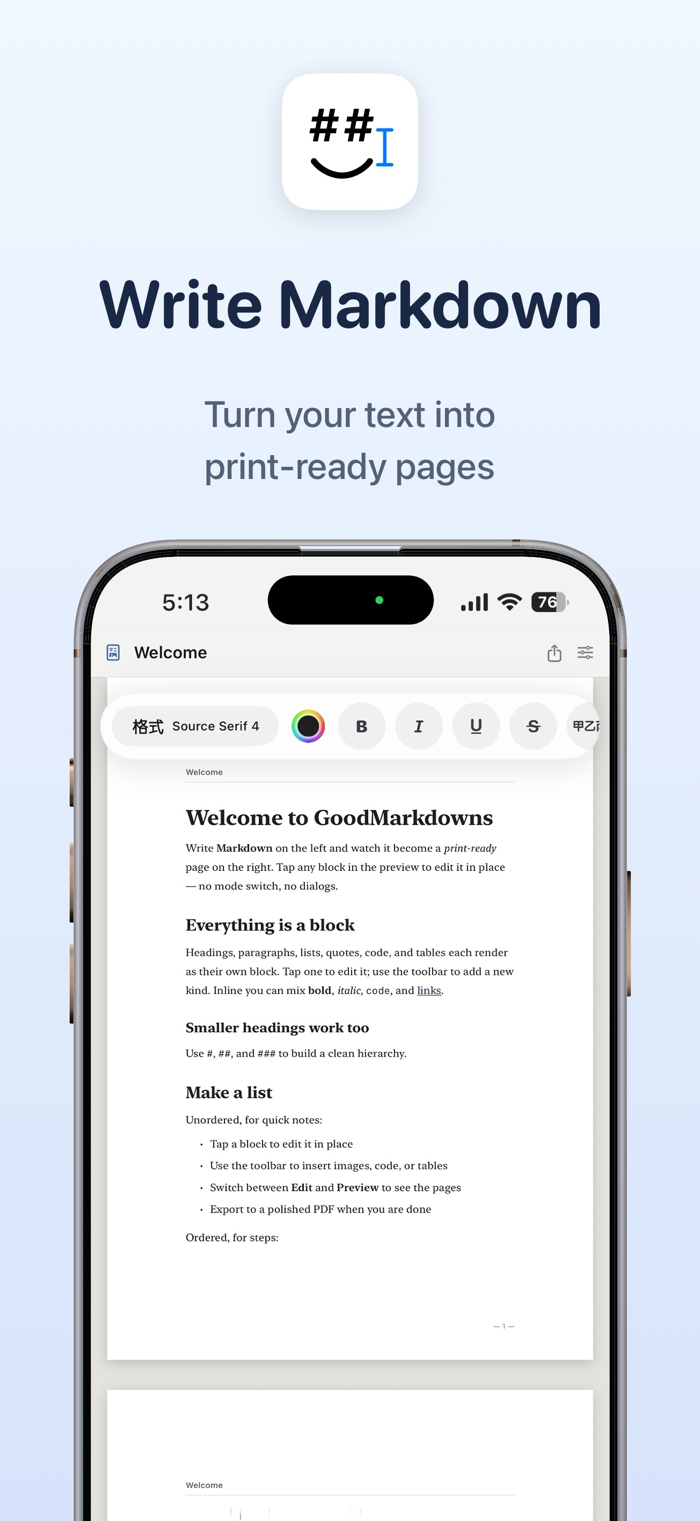
Write in Markdown and the text will be typeset onto real A4 or Letter pages in real time. You can see where each page breaks before exporting and export what you see as a print-quality PDF. There are 8 design templates, 11 document templates, 6 paper sizes and landscape pages, and you can continue writing between iPhone and iPad using iCloud.
The screen where you write Markdown is the page that will be printed in the future. As you type, the document is typeset onto real paper in real time, and you can see where each page breaks before exporting. What you see is what the exported print-quality PDF will look like.
Most Markdown editors are convenient for writing, but once it comes to finalizing a draft, you don't know what the layout will be like. The preview in GoodMarkdowns is the finished product. Whether you're writing a new piece or opening an existing .md file, you can adjust it slowly while looking at the final effect.
■ Real-time page preview
As you type, the text drops onto the A4 or Letter paper line by line. The pagination position, margins, and line break style are exactly the same as the final PDF. You can switch between single-page, two-page spread, and grid view for a full view at any time, and pinch with two fingers to continuously zoom.
■ Edit directly on the page
Tap on a title, paragraph, list, or table cell in the preview to modify it in place. The Markdown source text and the page are linked bidirectionally. You can write using the syntax or make adjustments conveniently on the page. Common operations are grouped in the block operation bar.
■ 8 design templates
Pick a layout according to your needs and switch at any time.
• Report — A clean layout suitable for work and project documents
• Academic — A classic font layout suitable for papers and essays
• Minimalist — Only the text itself, without any extra decoration
• Technical — A structured design with numbered chapters
• Manuscript — Loose line spacing, suitable for first drafts and submissions
• Newspaper — A compact and dense layout like a newspaper
• Business — A稳重气质 layout suitable for proposals and plans
• Book — A layout with a page layout similar to a printed book's body text
■ Start writing from a template
On iPad, you don't have to face a blank page. There are 11 document skeletons to choose from, such as meeting minutes, weekly reports, resumes, blog articles, e-zines, study notes, academic papers, product requirement documents (PRD), READMEs, release notes, and architecture decision records (ADR). Just fill in the content.
■ 6 paper sizes and landscape pages
You can choose from A3, A4, A5, A6, Letter, Legal, or turn the page to landscape. You can set the header, footer, page numbers, and margins yourself, ensuring it meets the specifications for submitting assignments or for printing.
■ Adjust styles by block
You can adjust a single paragraph or title without affecting the whole document. Set the font, alignment, and margins for a block in the inspector to make the layout the way you want.
■ Built-in image editor
You don't have to switch between several apps before inserting an image. Twelve tools such as cropping, highlighter, and mosaic, and ten annotations such as arrows and spotlights are all done within the app. You can also adjust the size and angle using the eight-direction control points when placing the image on the page.
■ Export to PDF, PNG, JPEG, and HEIC
Export as a vector PDF with clear text that can be directly selected and copied. Save as PNG, JPEG, or HEIC when you need images, and choose the resolution from 1x to 3x. When the document is long, you can wait while watching the progress, or cancel at any time.
■ Standard Markdown syntax
Headings, bold and italic, lists, tables with column alignment settings, quotes, and code blocks with syntax highlighting. When opening an existing .md file, the format is restored as it is, and it's also comfortable to use as a Markdown reader; the document settings are written in the front matter and will be the same when opened next time.
■ Document library on iPad
Organize your articles with folders. You can create, rename, move, delete documents and folders all in one place. On iPhone, documents are opened and saved through the "Files" app.
■ iCloud sync with Pro
After enabling Pro, the document library on iPad will be placed in your own iCloud Drive folder, and the same document can be opened on other devices. Without Pro, the documents remain on the local device, but you can also put
分享「」体验,参与「」抽奖!
分享 1~3 张你对这个产品最满意的截图或效果图
分享「」体验,参与「」抽奖!
用你的故事点亮社区✨!你的真实体验,将会永久展示在 官方主页 📌,为其他朋友提供宝贵参考 💡。立即分享吧!🚀
请为产品评分
请选择问题回答,为大家提供宝贵参考
选择要回答的问题
温馨提示
你尚未上传产品截图。
上传截图可立即获得宝石积分奖励!
如果你赶时间,也可稍后修改评论,补上截图领取宝石。
温馨提醒
你尚未添加产品截图
⚠️ 不添加截图将降低抽奖权重

感谢参加,你已成功参加!
为了确保你能及时收到审核结果和领奖码通知

扫描二维码关注 Mergeek 公众号
在后台回复 「获奖通知」
完成上述操作,即可保障奖励发放成功







用户评价
立即分享产品体验
你的真实体验,为其他用户提供宝贵参考
💎 分享获得宝石
【分享体验 · 获得宝石 · 增加抽奖机会】
将你的产品体验分享给更多人,获得更多宝石奖励!
💎 宝石奖励
每当有用户点击你分享的体验链接并点赞"对我有用",你将获得:
🔗 如何分享
复制下方专属链接,分享到社交媒体、群聊或好友:
💡 小贴士
分享时可以添加你的个人推荐语,让更多人了解这款产品的优点!
示例分享文案:
"推荐一款我最近体验过的应用,界面设计很精美,功能也很实用。有兴趣的朋友可以看看我的详细体验评价~"
关注 Mergeek 公众号
领奖遇到问题?联系小门助手