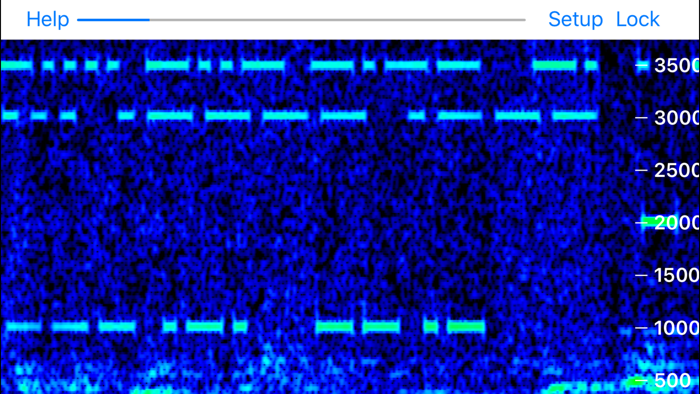
Godafoss displays a waterfall of the audio spectrum, letting you view QRSS CW, DFCW, FSKCW, and other slow transmission speed signals. You can place your device’s microphone near the speaker or headphones of your radio to pick up the sound, or directly connect if you have an appropriate cable.
A frequency axis is displayed to the right or bottom of the screen, depending on the direction the waterfall is running.
You can pan the range of audio frequencies by touching the screen and sliding with your finger, in the same direction as the frequency axis.
You can also pinch and zoom to adjust the span of frequencies displayed, up to a maximum of 0 to 20 kHz.
If you don’t want to accidentally change the frequency range, tap the Lock button so it is highlighted. Panning and pinch/zoom will not affect the frequency range, so you don’t accidentally change them.
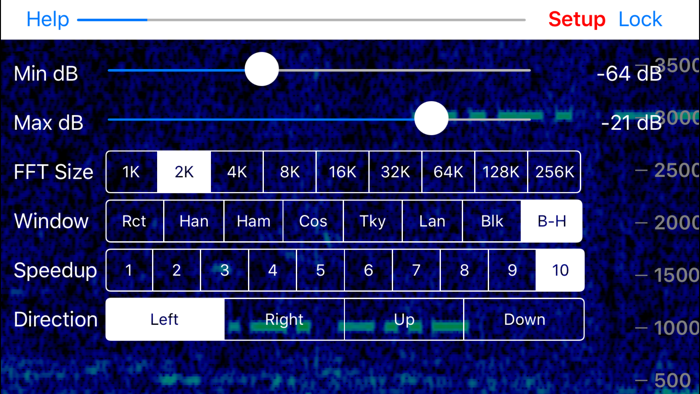
When first started, Godafoss defaults to an FFT size of 4K, with a Hanning window. You can change these and other settings by tapping the Setup button, and a set of controls will appear:
The first two are sliders that set the minimum and maximum audio levels for the waterfall colors. Adjust these to get the best looking display for the signals of interest. Often you want a blue background, the minimum dB slider should first be adjusted for this. Then adjust the maximum slider for the strongest signal, often it is desired to make this red or pink, but you have the flexibility...


 +100宝石


 分享
分享









用户评价
立即分享产品体验
你的真实体验,为其他用户提供宝贵参考
💎 分享获得宝石
【分享体验 · 获得宝石 · 增加抽奖机会】
将你的产品体验分享给更多人,获得更多宝石奖励!
💎 宝石奖励
每当有用户点击你分享的体验链接并点赞"对我有用",你将获得:
🔗 如何分享
复制下方专属链接,分享到社交媒体、群聊或好友:
💡 小贴士
分享时可以添加你的个人推荐语,让更多人了解这款产品的优点!
示例分享文案:
"推荐一款我最近体验过的应用,界面设计很精美,功能也很实用。有兴趣的朋友可以看看我的详细体验评价~"
关注 Mergeek 公众号
领奖遇到问题?联系小门助手