














加入 Mergeek 福利群
扫码添加小助手,精彩福利不错过!
若不方便扫码,请在 Mergeek 公众号,回复 群 即可加入
- 精品限免
- 早鸟优惠
- 众测送码
 Ram-Cam
7710 Rampage WIFI Backup Camera
IMPORTANT: The Rampage Wifi Backup Camera is intended only for temporary low speed use for hooking up trailers or backing up/parking situations. It is not intended for high speed travel and may not stay attached to the vehicle. Please remove before traveling at high speeds.
Operation
Use the High Strength magnets on the camera’s mount to attach to vehicles, trailers, or anywhere there is a magnetic surface available. Connect your viewing device to the camera using the built in WiFi hotspot in the camera (see below for details). Adjust the view on the camera as required using the connected device as a viewer, then back up with an extra eye wherever you need it.
Dust Ring
The dust ring can be rotated to cover the lens and plugs when the camera is not in use.
Charging
With power switch in off position, connect the camera to a computer or power supply with the included USB cable. While charging, the red light will illuminate and then shut off when it is fully charged. The camera can be operated while charging, this will be indicated by the blue light flashing and the red light staying solid.
Power on / Connecting to the App
Slide the on switch to “ON” position. When blue light stays solid the device is in start up mode. Once the blue light begins to slowly blink it is ready to connect to your device. NOTE: For iOS (Apple) the WiFi must be connected before using the app, connect to the cameras WiFi hotspot before opening the app (instructions below).
To connect to the WiFi on an iOS device
Open “Settings”, find the “WiFi” tab and open it, watch for a WIFI device named “fh8610cam-aca*******”, select it, and then use the default password:“12345678” when prompted. Once the device is connected, exit “Settings” and open the RamCam app.
Rotate (display rotate icon)
Use the Rotate button to rotate the camera’s view.
Recording Video (display red-dot icon)
Use the red circle icon to start recording video. The video will be recorded onto the connected device not onto the camera and will continue to record until it is pressed again to stop. Recording is indicated by the icon being a red square instead of a circle. Videos are stored in the apps file folder and can be played back from the app or transferred to the Camera role on the iOS device.
Take a Picture (display camera icon)
To take a picture, press the camera icon and the current view will be saved to the app's file folder on the device. Photos can be transferred to the “Camera Roll” folder on iOS devices as needed.
LED Light (display Light icon)
Use the light bulb button to turn the LED on and off.
Settings Adjustment
The settings button brings up controls for the picture quality and also to allow changes to the password setting on the camera.
File Access
The files icon allows access to the files recorded on the device via the camera app, and allows the user to transfer the files as required for use in emails or elsewhere.
Auto shut down
If the battery voltage drops below a set point the camera will automatically shut down. This will be indicated by the blue light flashing rapidly. Be sure to switch the device off if this happens.
7710 Rampage WIFI Backup Camera
IMPORTANT: The Rampage Wifi Backup Camera is intended only for temporary low speed use for hooking up trailers or backing up/parking situations. It is not intended for high speed travel and may not stay attached to the vehicle. Please remove before traveling at high speeds.
Operation
Use the High Strength magnets on the camera’s mount to attach to vehicles, trailers, or anywhere there is a magnetic surface available. Connect your viewing device to the camera using the built in WiFi hotspot in the camera (see below for details). Adjust the view on the camera as required using the connected device as a viewer, then back up with an extra eye wherever you need it.
Dust Ring
The dust ring can be rotated to cover the lens and plugs when the camera is not in use.
Charging
With power switch in off position, connect the camera to a computer or power supply with the included USB cable. While charging, the red light will illuminate and then shut off when it is fully charged. The camera can be operated while charging, this will be indicated by the blue light flashing and the red light staying solid.
Power on / Connecting to the App
Slide the on switch to “ON” position. When blue light stays solid the device is in start up mode. Once the blue light begins to slowly blink it is ready to connect to your device. NOTE: For iOS (Apple) the WiFi must be connected before using the app, connect to the cameras WiFi hotspot before opening the app (instructions below).
To connect to the WiFi on an iOS device
Open “Settings”, find the “WiFi” tab and open it, watch for a WIFI device named “fh8610cam-aca*******”, select it, and then use the default password:“12345678” when prompted. Once the device is connected, exit “Settings” and open the RamCam app.
Rotate (display rotate icon)
Use the Rotate button to rotate the camera’s view.
Recording Video (display red-dot icon)
Use the red circle icon to start recording video. The video will be recorded onto the connected device not onto the camera and will continue to record until it is pressed again to stop. Recording is indicated by the icon being a red square instead of a circle. Videos are stored in the apps file folder and can be played back from the app or transferred to the Camera role on the iOS device.
Take a Picture (display camera icon)
To take a picture, press the camera icon and the current view will be saved to the app's file folder on the device. Photos can be transferred to the “Camera Roll” folder on iOS devices as needed.
LED Light (display Light icon)
Use the light bulb button to turn the LED on and off.
Settings Adjustment
The settings button brings up controls for the picture quality and also to allow changes to the password setting on the camera.
File Access
The files icon allows access to the files recorded on the device via the camera app, and allows the user to transfer the files as required for use in emails or elsewhere.
Auto shut down
If the battery voltage drops below a set point the camera will automatically shut down. This will be indicated by the blue light flashing rapidly. Be sure to switch the device off if this happens.
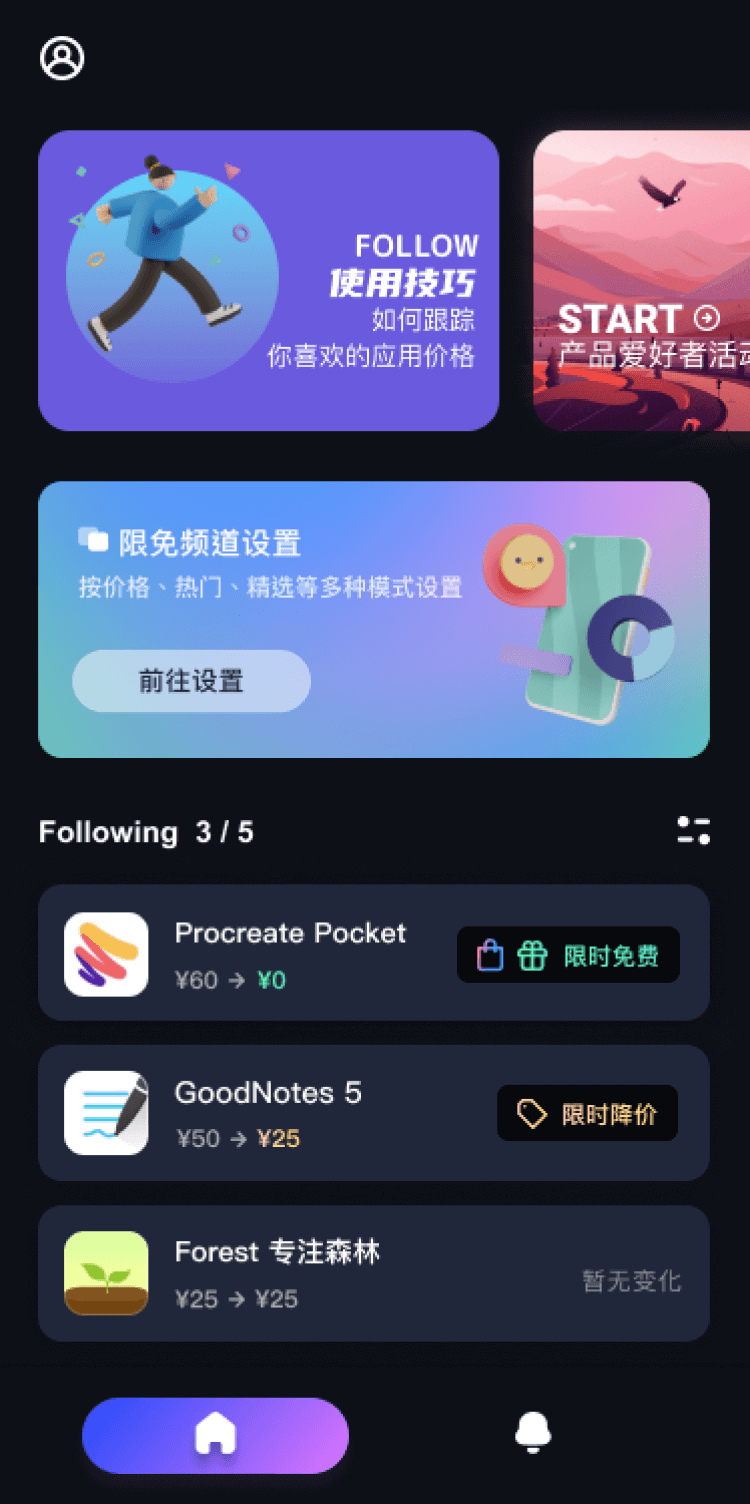
第一时间掌握精选限免应用/游戏信息
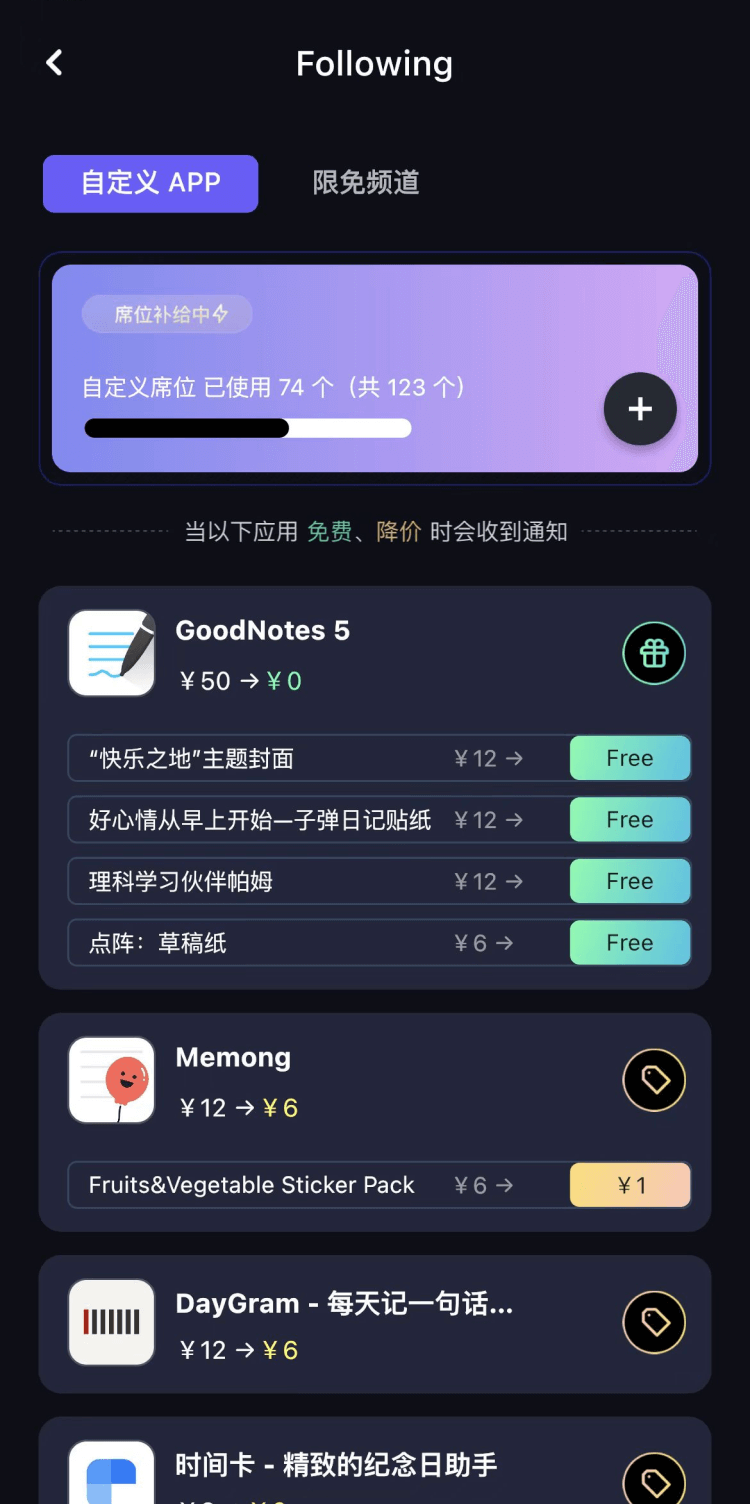
自定义喜欢的应用/游戏的价格变动
了解内购应用/游戏的限免或降价活动
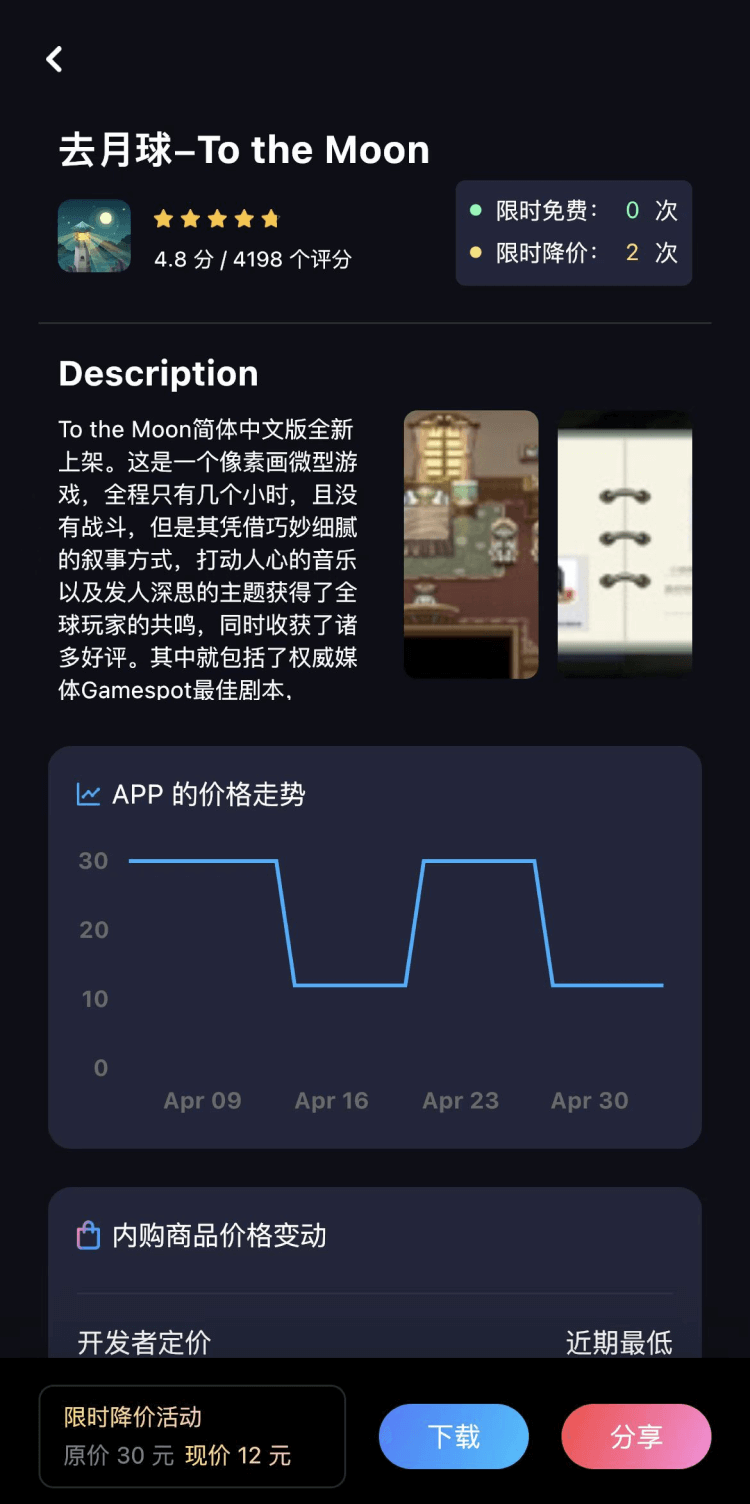
查看应用/游戏价格历史等待合适时机再出手
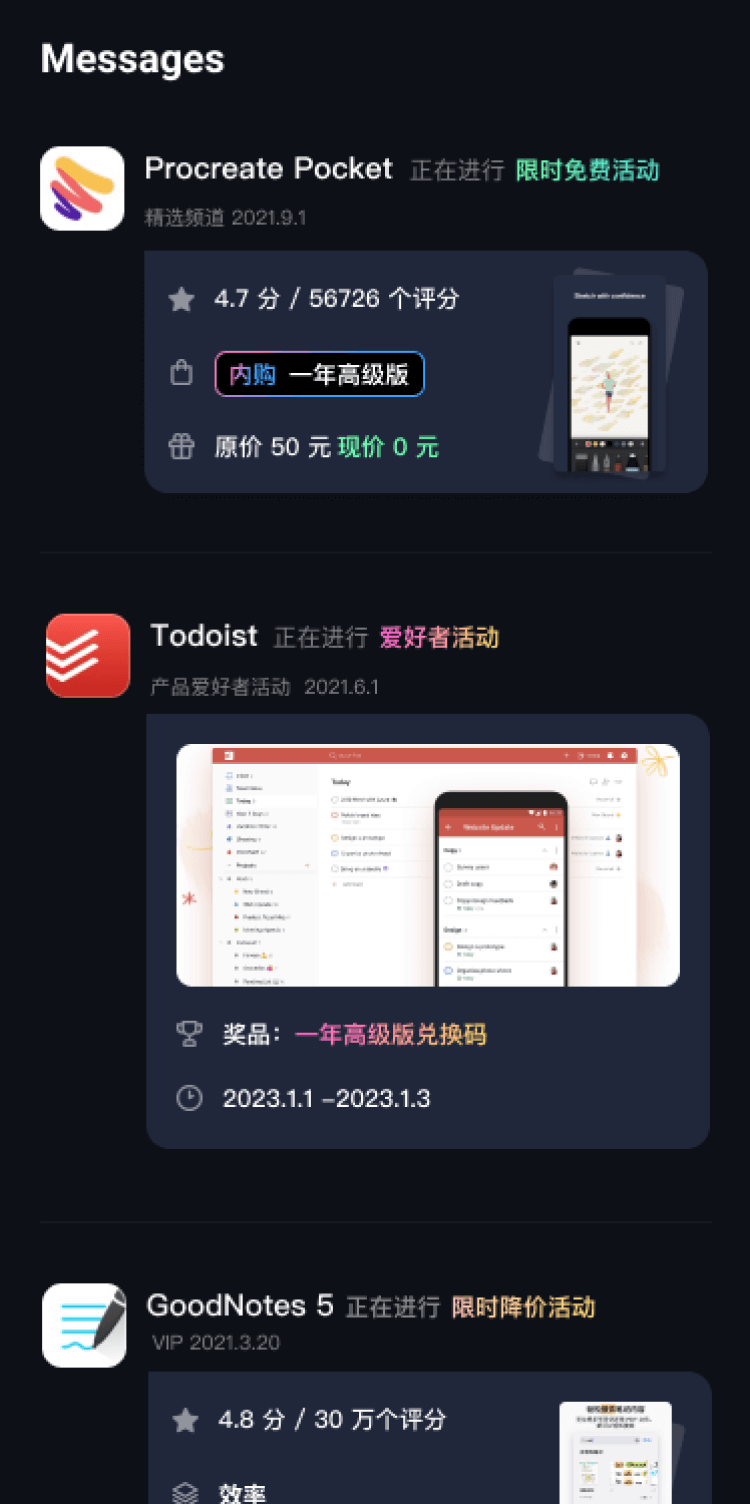
第一时间收到价格通知不错过省钱机会

扫码下载 Follow
 如快
如快
🚀 一款轻量化的启动器软件,界面简洁美观、操作便捷,并且支持插件开发。支持全键盘操作。开发者目前处于...

 iPlayer
iPlayer 是一款强大的本地音乐播放器,兼容 iPhone、iPad 和 Mac,提供跨平台无缝...
 黑马简历
黑马简历
黑马简历是一款专为职场人士和求职者设计的智能简历助手,旨在帮助用户快速打造专业、高效的求职简历。通过...
 2
2
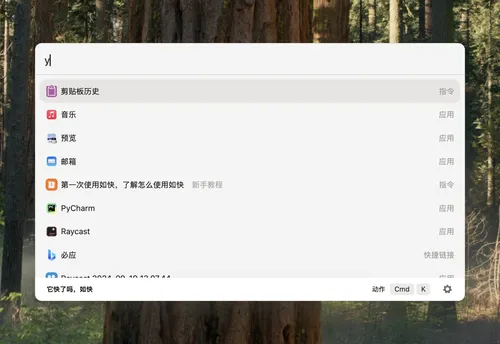


🚀 一款轻量化的启动器软件,界面简洁美观、操作便捷,并且支持插件开发。支持全键盘操作。开发者目前处于...
62
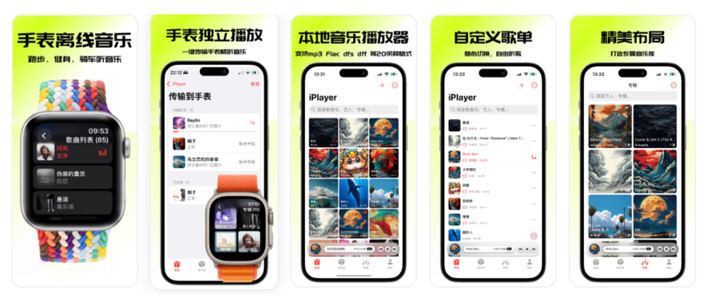


iPlayer 是一款强大的本地音乐播放器,兼容 iPhone、iPad 和 Mac,提供跨平台无缝...
54

黑马简历是一款专为职场人士和求职者设计的智能简历助手,旨在帮助用户快速打造专业、高效的求职简历。通过...
天天发现优质应用
 到主屏幕
到主屏幕


产品名
这项是必须填的哦~可用平台
产品链接
这项是必须填的哦~产品一句话介绍
这项是必须填的哦~开发者邮箱
你也可以发送更多的产品故事到 hi@mergeek.com
我们会让你的产品被更多用户看到!
产品名
这项是必须填的哦~可用平台
产品链接
这项是必须填的哦~产品一句话介绍
这项是必须填的哦~开发者邮箱
你也可以发送更多的产品故事到 hi@mergeek.com
我们会让你的产品被更多用户看到!
已经成功发送到你的邮箱了,请注意查收
你成为这个产品的发现者啦,说说你的推荐语吧!