The Reality Augmenter is a video/projection mapping app and requires a projector This app can connect to a projector via a standard video adapter for your device, or wirelessly via an Airplay or Google Cast enabled device.
Key Features
Use camera roll for video, image and slide show texture sources
Import photos and videos from directly from Dropbox
Scrolling text source with font control
Any number of source texture subdivisions
Use any source texture as a mask
Webpages as textures
Airplay enabled for wireless connection
Precise quad geometry editor with pan and zoom
Display and UI decoupled so app acts as remote control
Details
The Reality Augmenter is a tool for projection mapping, a technique to project images onto surfaces without precise alignment of the projector. The app is ideal for art installations, window displays, visual merchandising, galleries, nightclub visuals, display booths and anything else you can dream up.
The Reality Augmenter uses the projector as a secondary display, while the iOS device is used to configure the display.
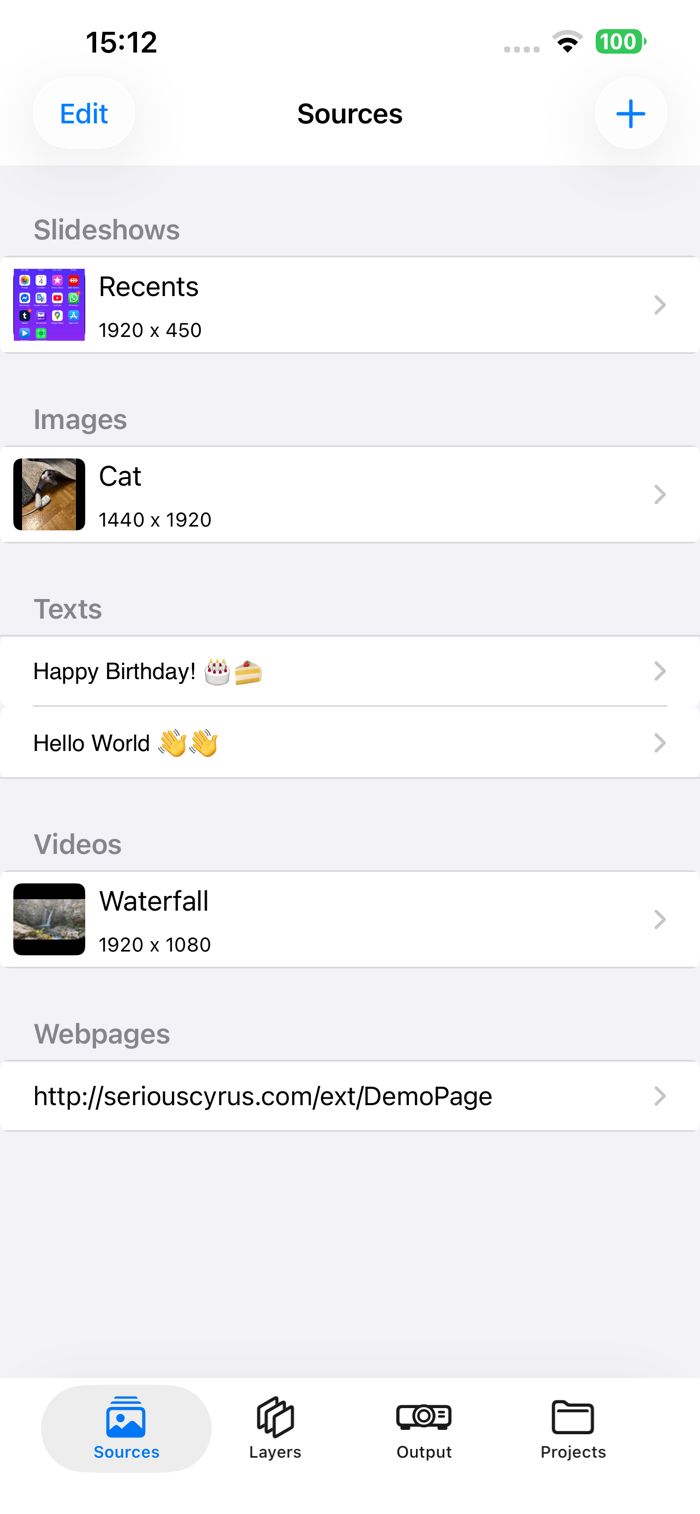
Sources Tab
Pick videos and photos and albums from the camera roll, create text or specify webpages to use as sources from the Sources tab. Once created you can edit various aspects of the source depending on it's type.
Sources can be cropped using the crop icon in the top right of any source editor.
Layers Tab
Create layers in the Layers tab, sources can be assigned to and combined in layers, layers are projected.
The Edit Layer view allows you to select sources as the main layer image (required), and optionally set an overlay and a mask.
When used as a mask, the source image used is converted to black and white, the threshold controls the cut off point of the mask.
You can toggle between layer geometry and layer properties with the switch in the top right.
Edit the geometry to drag and map the four corners of the quad to the surface being mapped. The secondary display will highlight the quad being edited to help with mapping. You can zoom in and out with the pinch gesture. At higher zoom levels, corners will snap to the corners of nearby layers. Once snapped, the the circle around the corner will change to orange, and all snapped corners will move along with your current layer. To remove a snapped corner, simply hold before dragging the corner away.
Output Tab
The Output tab provides facilities to play and pause the entire project, flip the output of the secondary display, and activate a basic screensaver for when the device will be in use a long time.
Projects Tab
New projects can be accessed, created and deleted here.
The number of photo and videos supported varies between device, and will be affected by size and quality of videos and photos used.
For long periods of use, it's recommended to turn off screen locking and keep the iOS device plugged in to power. The app has a built in screensaver that can be activated to turn the display off. As the Reality Augmenter currently runs using Metal, drawing will be suspended if the app enters background. Notifications also pause output, for long periods of unattended use, you should turn off all notifications.


 +100宝石


 分享
分享










用户评价
立即分享产品体验
你的真实体验,为其他用户提供宝贵参考
💎 分享获得宝石
【分享体验 · 获得宝石 · 增加抽奖机会】
将你的产品体验分享给更多人,获得更多宝石奖励!
💎 宝石奖励
每当有用户点击你分享的体验链接并点赞"对我有用",你将获得:
🔗 如何分享
复制下方专属链接,分享到社交媒体、群聊或好友:
💡 小贴士
分享时可以添加你的个人推荐语,让更多人了解这款产品的优点!
示例分享文案:
"推荐一款我最近体验过的应用,界面设计很精美,功能也很实用。有兴趣的朋友可以看看我的详细体验评价~"
关注 Mergeek 公众号
领奖遇到问题?联系小门助手