













加入 Mergeek 福利群
扫码添加小助手,精彩福利不错过!
若不方便扫码,请在 Mergeek 公众号,回复 群 即可加入
- 精品限免
- 早鸟优惠
- 众测送码
 Remote Ripple
 3.0
3.0
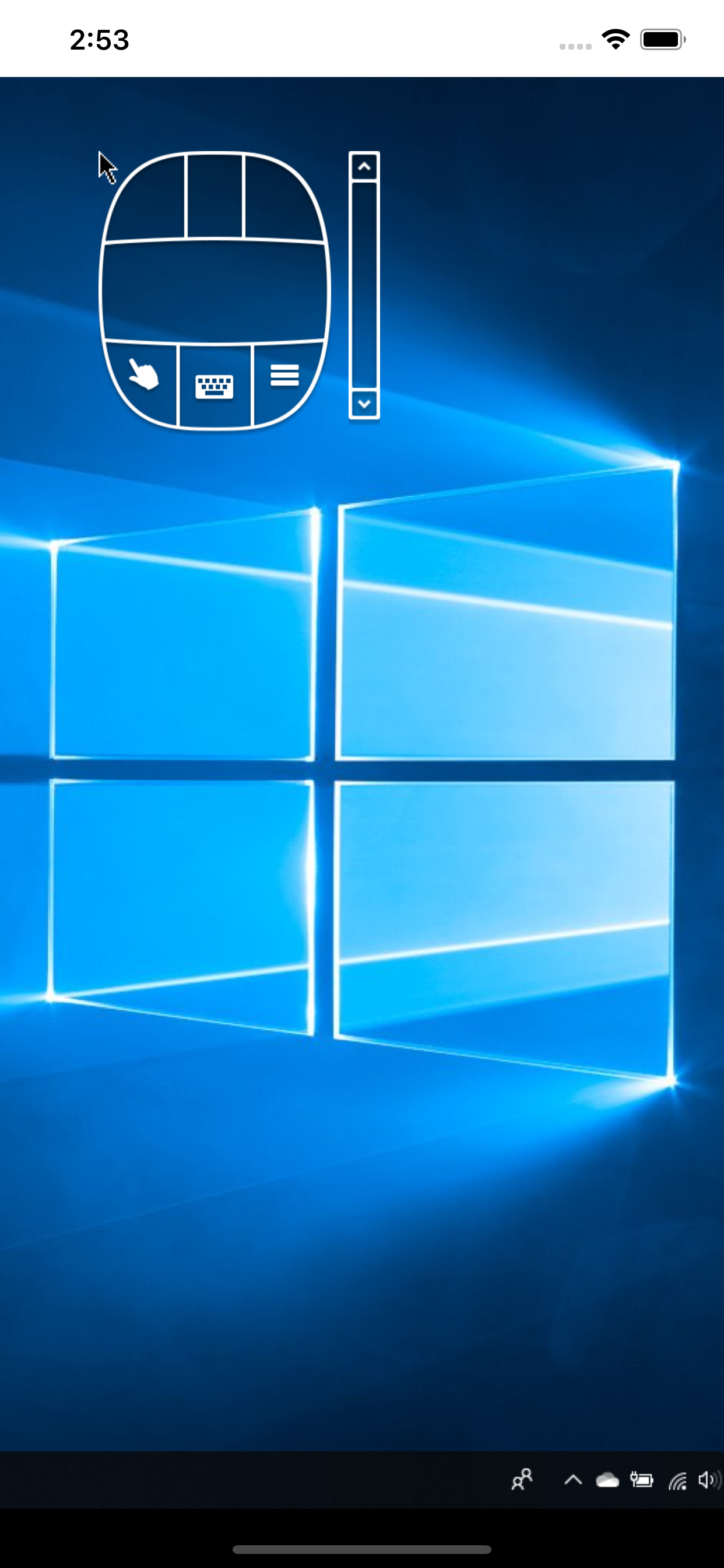
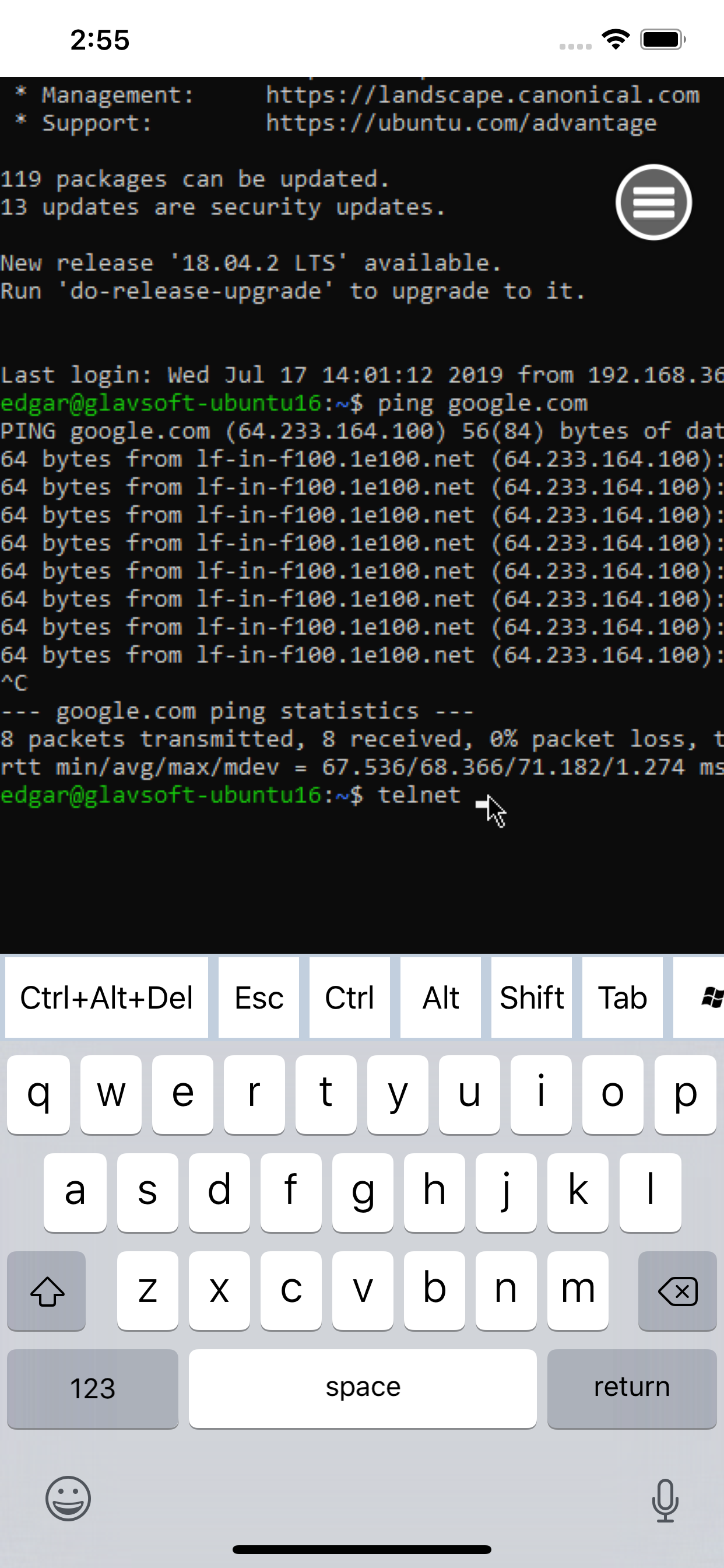
Fast remote desktop client from the developers of TightVNC. It allows you to access, view and control your PC, Mac and Unix systems remotely. As compared to competing VNC viewers, Remote Ripple offers:
- Clean and simple user interface
- Fast operation even on slow connections
- Smooth desktop scaling
- Low memory footprint
It works via Wi-Fi, 3G, 4G/LTE networks and connects straightly to your remote machines. It does not use intermediate servers and does not route your data to third-party services. While direct connections via Internet may require some configuration, they guarantee best performance and independence from online services.
HOW IT CAN HELP YOU
From time to time, many of us need to access our “big computers” and use some “big software” installed on it. Remote Ripple allows you to do your work remotely. Also, you can:
- Monitor what's happening on your computers while you're away (use View-only mode to prevent from interfering with the desktop).
- Provide remote support to your friends and family. Assist in installing software, fix problems and demonstrate how to set up things.
- Administer servers, workstations and virtual machines remotely.
- Control your home computers while laying in a lounge chair. For example, you can use Remote Ripple as a remote control for your music or video player running on a PC.
- Copy a file forgotten on a remote host (while Remote Ripple does not support direct file transfers, it can help in transferring files with other services like Dropbox or Google Drive).
Install Remote Ripple, and find your own use cases!
GETTING STARTED
To connect with Remote Ripple, make sure your target computer runs a sort of VNC server.
- If the target PC runs Windows, install a VNC server on it. We strongly recommend TightVNC as it provides best performance and compatibility with Remote Ripple. You can download your free copy of TightVNC on its Web site — http://www.tightvnc.com/
- Mac OS X systems already have a VNC server included. It's a part of Apple Remote Desktop service. To enable it, go to System Preferences, choose Sharing, enable Remote Management, press Computer Settings, check “VNC viewers may control screen with password” and enter the password you will use when connecting.
- Most Linux distributions include a number of VNC servers as well. Just install a VNC server from your package collection, and type something like vncserver or tightvncserver (or whatever command starts that particular VNC server). Typically, it will offer you to enter new VNC password and will start sharing your desktop (or create new virtual desktop for you).
- Virtualization systems (such as VMware and QEMU) often include built-in VNC servers, although they may not be enabled by default.
GET NEWS AND SUPPORT
- App page at Facebook: https://www.facebook.com/RemoteRipple (press Like to see updates in your news feed)
- Remote Ripple on Twitter: https://twitter.com/RemoteRipple (press Follow to get updates)
LIKE REMOTE RIPPLE? RATE AND REVIEW IT ON THE APP STORE!
Also, we will appreciate if you review Remote Ripple in your blog, social networks, other Web sites or forums. Send us links to your reviews!
Thank you!
Fast remote desktop client from the developers of TightVNC. It allows you to access, view and control your PC, Mac and Unix systems remotely. As compared to competing VNC viewers, Remote Ripple offers:
- Clean and simple user interface
- Fast operation even on slow connections
- Smooth desktop scaling
- Low memory footprint
It works via Wi-Fi, 3G, 4G/LTE networks and connects straightly to your remote machines. It does not use intermediate servers and does not route your data to third-party services. While direct connections via Internet may require some configuration, they guarantee best performance and independence from online services.
HOW IT CAN HELP YOU
From time to time, many of us need to access our “big computers” and use some “big software” installed on it. Remote Ripple allows you to do your work remotely. Also, you can:
- Monitor what's happening on your computers while you're away (use View-only mode to prevent from interfering with the desktop).
- Provide remote support to your friends and family. Assist in installing software, fix problems and demonstrate how to set up things.
- Administer servers, workstations and virtual machines remotely.
- Control your home computers while laying in a lounge chair. For example, you can use Remote Ripple as a remote control for your music or video player running on a PC.
- Copy a file forgotten on a remote host (while Remote Ripple does not support direct file transfers, it can help in transferring files with other services like Dropbox or Google Drive).
Install Remote Ripple, and find your own use cases!
GETTING STARTED
To connect with Remote Ripple, make sure your target computer runs a sort of VNC server.
- If the target PC runs Windows, install a VNC server on it. We strongly recommend TightVNC as it provides best performance and compatibility with Remote Ripple. You can download your free copy of TightVNC on its Web site — http://www.tightvnc.com/
- Mac OS X systems already have a VNC server included. It's a part of Apple Remote Desktop service. To enable it, go to System Preferences, choose Sharing, enable Remote Management, press Computer Settings, check “VNC viewers may control screen with password” and enter the password you will use when connecting.
- Most Linux distributions include a number of VNC servers as well. Just install a VNC server from your package collection, and type something like vncserver or tightvncserver (or whatever command starts that particular VNC server). Typically, it will offer you to enter new VNC password and will start sharing your desktop (or create new virtual desktop for you).
- Virtualization systems (such as VMware and QEMU) often include built-in VNC servers, although they may not be enabled by default.
GET NEWS AND SUPPORT
- App page at Facebook: https://www.facebook.com/RemoteRipple (press Like to see updates in your news feed)
- Remote Ripple on Twitter: https://twitter.com/RemoteRipple (press Follow to get updates)
LIKE REMOTE RIPPLE? RATE AND REVIEW IT ON THE APP STORE!
Also, we will appreciate if you review Remote Ripple in your blog, social networks, other Web sites or forums. Send us links to your reviews!
Thank you!
第一时间掌握精选限免应用/游戏信息
自定义喜欢的应用/游戏的价格变动
了解内购应用/游戏的限免或降价活动
查看应用/游戏价格历史等待合适时机再出手
第一时间收到价格通知不错过省钱机会

扫码下载 Follow
 ToChart
ToChart 是一款免费的数据可视化工具,支持直连 MySQL、PostgreSQL 等主流数据库...

 柚子助眠
柚子助眠
柚子助眠,地球人都在用的健康睡眠新概念应用小助手。Phone必备App神器.每一个热爱生活的人,都值...
 小象upup
一款轻便的日程和人际(客户)关系管理应用,个人成长效率助手,具有日程管理、项目协同、人脉管理、备忘记...
 9
9


ToChart 是一款免费的数据可视化工具,支持直连 MySQL、PostgreSQL 等主流数据库...
9


柚子助眠,地球人都在用的健康睡眠新概念应用小助手。Phone必备App神器.每一个热爱生活的人,都值...
5

一款轻便的日程和人际(客户)关系管理应用,个人成长效率助手,具有日程管理、项目协同、人脉管理、备忘记...
天天发现优质应用
 到主屏幕
到主屏幕


产品名
这项是必须填的哦~可用平台
产品链接
这项是必须填的哦~产品一句话介绍
这项是必须填的哦~开发者邮箱
你也可以发送更多的产品故事到 hi@mergeek.com
我们会让你的产品被更多用户看到!
产品名
这项是必须填的哦~可用平台
产品链接
这项是必须填的哦~产品一句话介绍
这项是必须填的哦~开发者邮箱
你也可以发送更多的产品故事到 hi@mergeek.com
我们会让你的产品被更多用户看到!
已经成功发送到你的邮箱了,请注意查收
你成为这个产品的发现者啦,说说你的推荐语吧!